Writing & the Editor
Find & Replace
Renamed a character in chapter twelve and need it fixed everywhere? Find & Replace searches your whole book and swaps text with the precision you'd expect.
Find text
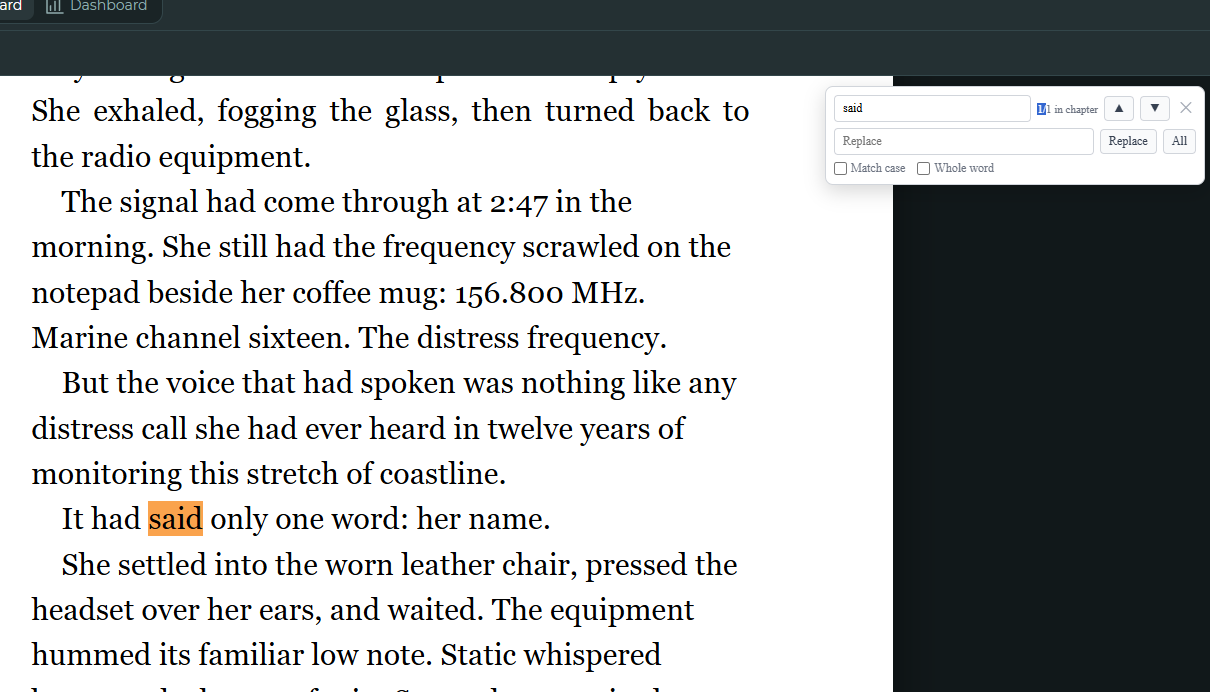
Open Find & Replace from the toolbar and type your term in the Find box, and Chaptery highlights every match as you type. A counter shows where you are (like 3 / 12), and the up and down arrows step you through them one by one. The search covers your whole book, moving from chapter to chapter on its own, so a match hiding three chapters away never slips past you.
Replace text
Type your replacement in the Replace box. Swap matches one at a time with Replace, or change every one at once with All.
Narrow the search
Two options keep you from changing the wrong thing:
- Match case: treat *Hope* and *hope* as different words.
- Whole word: match *art* without touching *start* or *partner*.
TipDoing a book-wide rename? Turn on Whole word so you catch every real instance and nothing else. The search already spans the whole book, so a single pass does it.