Chapters & scenes
Chaptery understands the shape of a book. Chapters are the backbone of your manuscript; scenes are reusable pieces you can park on the side and drop in wherever they belong.
Working with chapters
Your chapters live in the Outline panel. Right-click any chapter to add, rename, or delete it, insert a new chapter before or after, or merge it with the chapter above or below. To reorder the book, just drag chapters up and down in the Outline.
Special parts, handled for you
Beyond ordinary chapters, Chaptery knows the special parts of a book and treats each one with the right placement and numbering, so your table of contents and page numbers stay correct without any fiddling:
You add these as elements. See Front & back matter.
What scenes are for
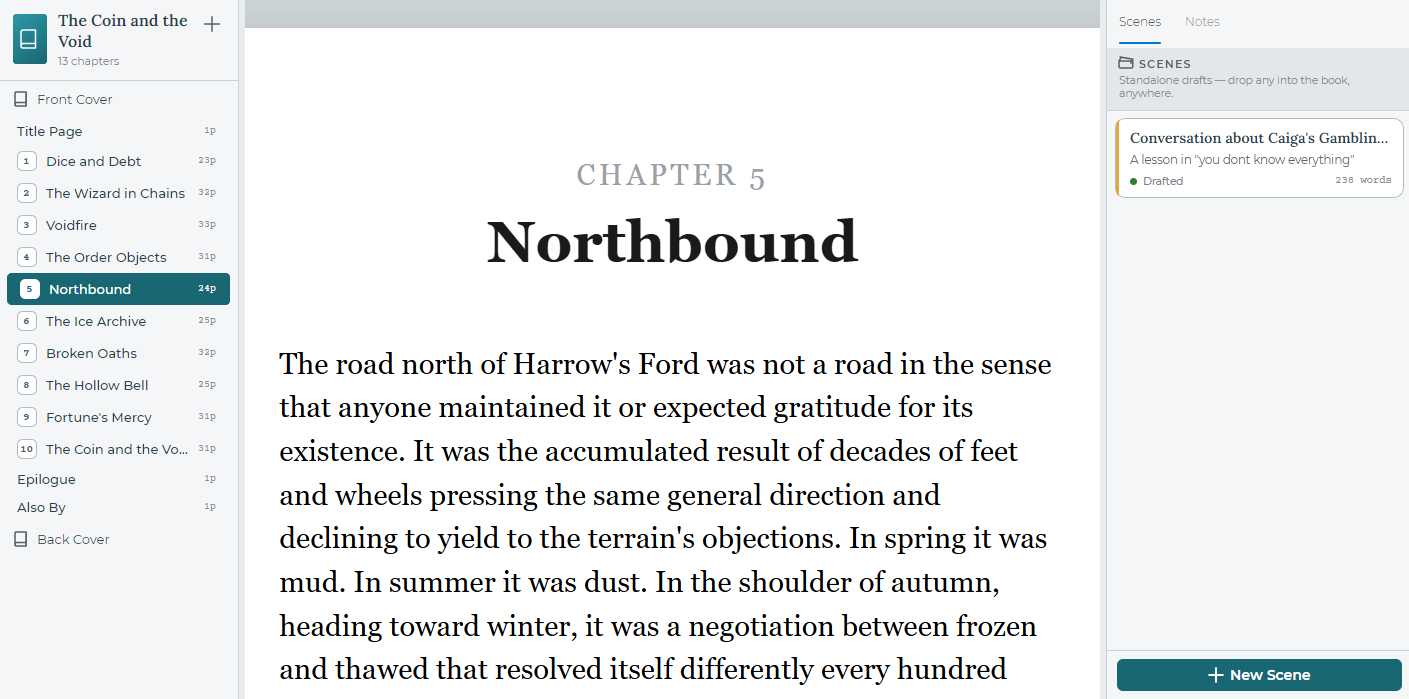
The Scenes panel in the Workspace bar is a holding area for writing that isn't pinned to a spot yet: a flash-forward, a snatch of dialogue, an alternate opening. Click New Scene, give it a name and a short description, and open it to write.
Scenes track themselves
Each scene shows a word count and a status that updates on its own: an empty scene reads as Outline, one you've started reads as Drafted, and once you drop it into the book it shows which chapter it landed in.
Drop a scene into your draft
Right-click any scene to put it to work:
- Insert at Cursor: drop the scene into the chapter you're writing, right where the cursor sits.
- Insert as New Chapter: promote the scene into a chapter of its own.
- Edit Properties: rename it or update its description.
- Open to keep writing it, or Delete when you're done.