The Startup window
The welcome screen is what you see when you open Chaptery before a book is loaded. It's mission control: pick up where you left off, start something new, or pull a book down from the cloud. Once a book is open, you're in the editor. The welcome screen is just for getting there.
Pick up where you left off
Signed in with books already? The welcome screen opens on Continue writing, with your most recent book featured. Resume writing takes you straight back in, and Open My Bookshelf opens your full cloud Bookshelf.
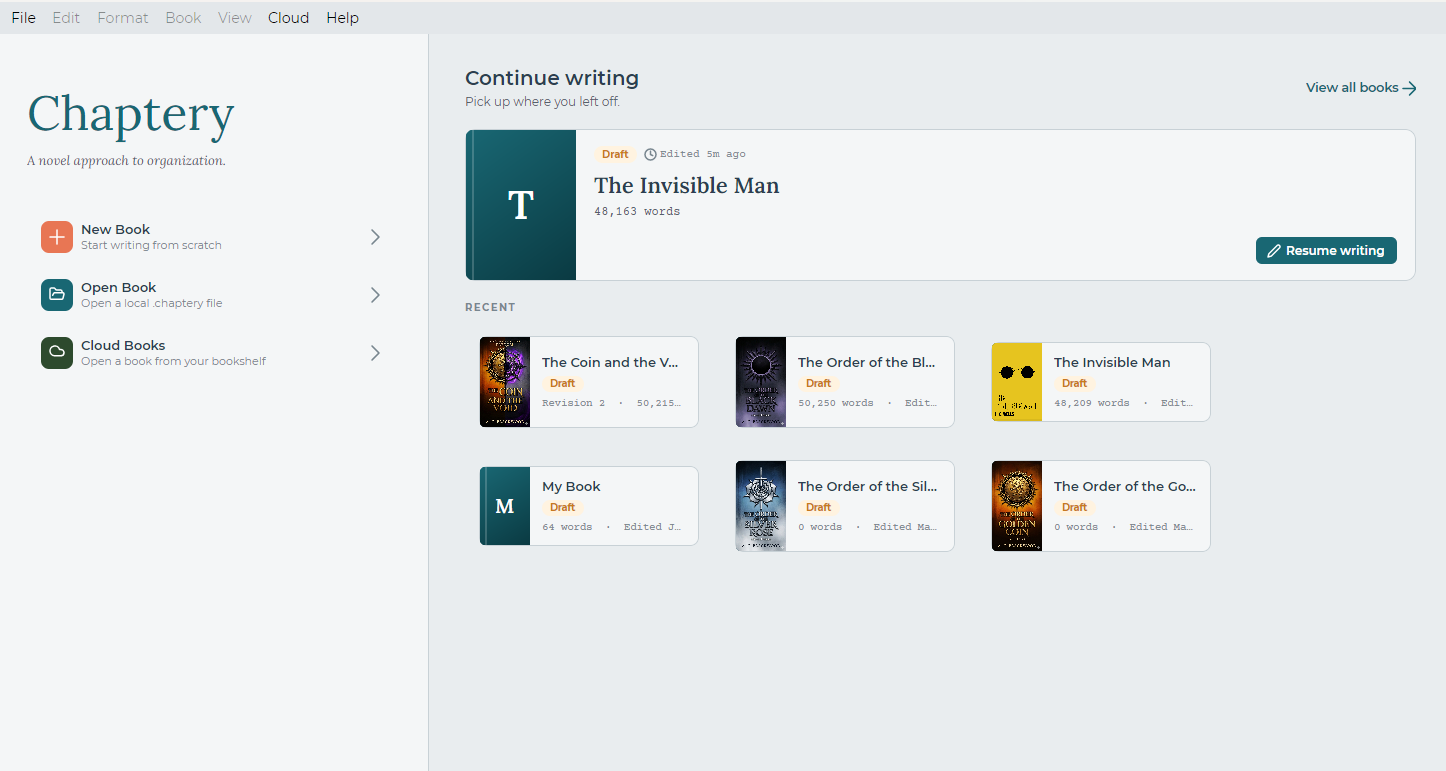
Start a new book
Click New Book to open the New Project wizard. It's three quick steps, and you can change any of it later:
- Book Details: title, author, subtitle, and language.
- Genre: choose a starting structure for your book.
- Design Theme: pick a typographic style for the finished pages.
Hit Create Project and you're on a blank page.
Open a book you've already started
Your cloud Bookshelf is one click away. My Bookshelf opens every book you've synced, from any device. Or use Open… to open a local .chaptery file straight from your computer.
Import from Word
Starting from an existing manuscript? Import brings a Word .docx straight in and turns it into a Chaptery book. See Import a Word document.
What needs an account
The welcome screen shows a reminder to sign in to create and edit. An account, with a trial or subscription, is what unlocks new books, editing, and cloud sync. You can still Open a local .chaptery file and export it without signing in.