Download & install Chaptery
Chaptery is a fast, native desktop app for Mac and Windows. Here's how to install it, sign in, and get to a blank page, plus what you can do before you have an account.
Download for your platform
Head to trychaptery.com/downloads. The page detects whether you're on a Mac or Windows and offers the right build automatically. The Installer is the pick for most writers.
On Windows there's also a portable, no-install build that runs straight from a folder. It's handy for a USB stick or a locked-down machine.
Install it
- Open the file you downloaded and follow the short installer.
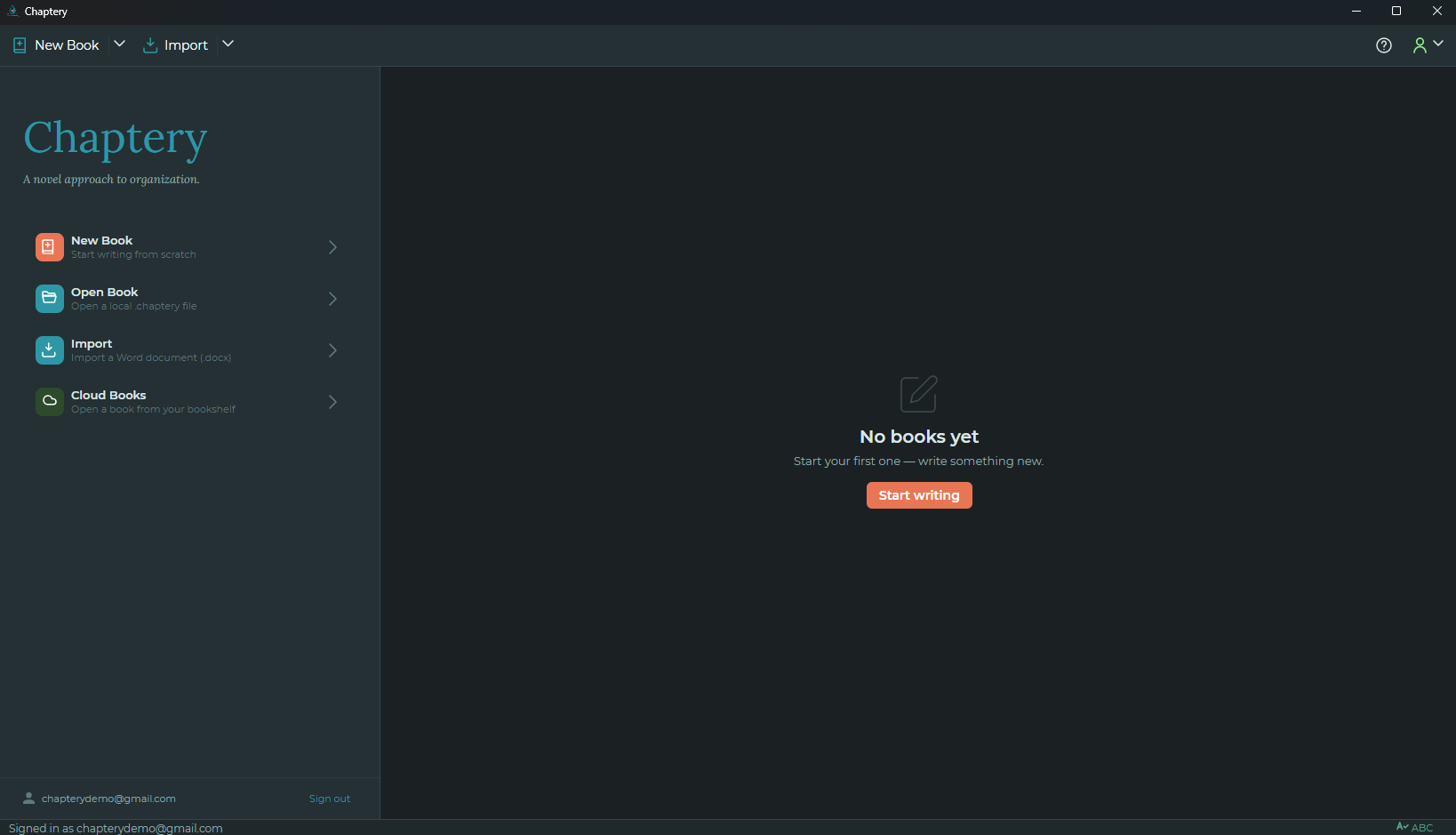
- Launch Chaptery. It opens to its start screen.
- Sign in (next step), and you're ready to start a book.
Sign in to write
Chaptery keeps your work backed up and synced, so you sign in to create and edit books. Use Sign In… in the top bar (or the prompt that appears when you start a book), then sign in or create an account.
Your first month is free
A new account starts a free one-month trial with full access to every feature, for a single book. It's the complete app, so you can try the editor, world-building, and cloud sync before you decide. After the trial, or to work on more than one book at a time, Chaptery is a subscription.
What works without an account
You can always open a local `.chaptery` file and export it to PDF, EPUB, or Word without signing in, so a finished manuscript is never locked away. Creating and editing books, world-building, and cloud sync are part of your trial or subscription.